
A drone crash is the worst-case scenario for aerial footage. The drone is damaged, the flight ended abruptly, and the last clip – often the most valuable one – may be incomplete or missing entirely. In the immediate aftermath, it is easy to assume the footage is gone with the drone.
But here is what most people do not realize: the footage is on the SD card, not in the drone. If the card survived the crash, your video is likely still on it – even if the drone itself will never fly again. Recovery is a matter of reading that card correctly.
What a Crash Does to Your Footage
A crash damages footage in specific ways that shape the recovery approach:
- The last clip is truncated. The drone stopped recording mid-write, leaving the file without a proper footer. It exists but will not play.
- The card may have been ejected. Impact can dislodge the card – which is actually good news, because it stopped writing.
- Fragmentation increases. High-bitrate 4K recording already fragments files; an abrupt stop scatters more of them.
- The card itself may be damaged. Cracks, bent contacts, or water damage change the approach entirely.
Most crash recovery is really “recover the last clip, which is incomplete.” That is a solvable problem.
Step 1 – Recover the Card from the Wreck
The first task is physical, not digital:
- Find the SD card. Check the crash site and the drone’s card slot. Many cards pop out on impact.
- Do not power on the damaged drone to read the card – a damaged drone may corrupt it further.
- Inspect the card. If it is cracked or has bent contacts, stop. Water damage needs drying before any attempt (see below).
If the card is intact and reads in a card reader, you have a real chance at the footage.
Step 2 – Scan the Card with Recoverit
Wondershare Recoverit handles drone cards with AI device recognition, and its SD Card Pro Recovery is built for the fragmented 4K footage a crashed SD card leaves behind.
- Connect the card to your computer with a card reader.
- Launch Recoverit and click SD Card Recovery.
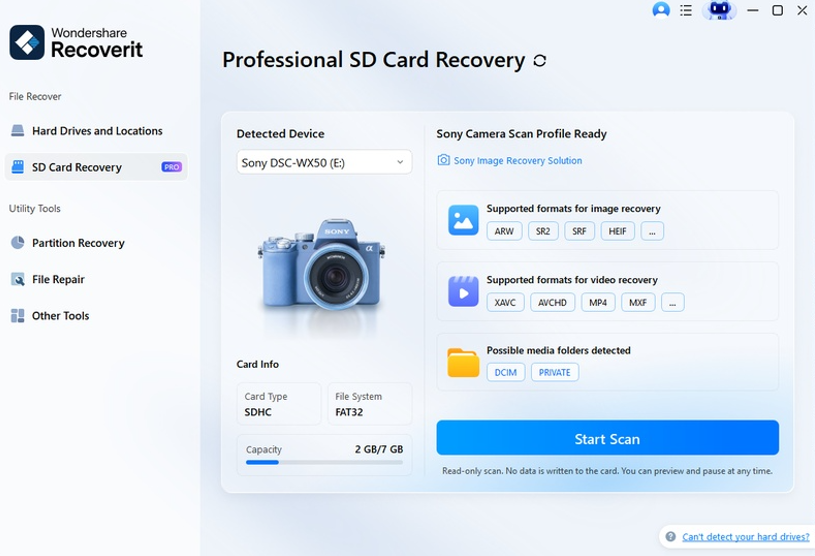
3. Select the card and start the scan. Recoverit automatically reassembles fragmented 4K clips when necessary to help ensure a successful and complete recovery.
4. Watch for the final clip – it may appear as a shorter or damaged file in some cases. Don’t worry; you can use the File Repair feature to repair it.
Step 3 – Preview What Survived
Preview the recovered files before saving. For a crashed flight, expect:
- Complete clips from earlier in the flight – these are usually intact.
- A partial final clip – may play only seconds or may not play at all.
- Hidden fragments – the deep scan may find piecemeal files the quick scan missed.
Step 4 – Repair the Truncated Clip
The last clip is the one that almost always needs repair. A truncated MP4 or MOV lacks a proper index, so players refuse it – even though the video data is present.
Recoverit’s video repair rebuilds these files. For severe cases, Advanced Repair uses a sample clip from the same drone model to reconstruct the structure. This is the step that turns “the crash clip is broken” into “the crash clip plays.”
If the Card Got Wet
Water damage needs careful handling, and the rule is counterintuitive: do not rush. Powering a wet card – or heating it to dry – can destroy it permanently.
- Do not insert it while wet.
- Dry it slowly with a desiccant (silica gel) for 24–48 hours.
- Do not use heat – no hair dryers, no ovens.
- Then read it with a reader and scan it.
If the card was submerged in salt water or dirty water, professional recovery may be needed – but drying first costs nothing, so do it.
If the Drone Will Not Power On
The drone being dead does not matter for footage recovery – the card holds the files. What matters is the card:
- Remove the card from the drone, carefully.
- Read it with a card reader connected to your computer.
- Scan it as normal.
The video recovery module and the Recoverit platform handle the software side; the drone’s electronics are irrelevant.
Preventing Crash-Related Footage Loss
- Offload footage after every flight. The card is safest when the footage lives elsewhere.
- Use a card tether. A small strap keeps the card from popping out on impact.
- Record in smaller clips. Shorter files lose less when a flight ends abruptly.
- Check the card slot. A worn slot releases cards too easily.
Conclusion
A drone crash is a disaster, but your footage is usually not lost – it lives on the SD card, and the main challenge is a truncated final clip. Recover the card, scan it with a drone-aware tool, and repair the last file. With Wondershare Recoverit, you can recover drone footage after a crash using Enhanced Recovery for fragmented 4K and repair for truncated clips. The drone may be beyond saving – but the flight does not have to be.